Connect a GitHub App
Register one GitHub App for your Stackweaver deployment, configure its credentials, then let organization administrators connect their GitHub installations. GitHub App integration is separate from browser SSO and from Azure workload identity.
Before you start
You need access to register or manage the GitHub App and to update your Stackweaver
deployment. Connecting an installation in Stackweaver requires organization ownership or
manage-vcs-settings permission. The GitHub account completing authorization must have
access to the installation being connected.
Use your public frontend and API origins throughout. For a local environment, substitute its URLs consistently; a localhost webhook cannot receive deliveries from GitHub. Use a separate app for local and production deployments when their Setup URLs differ.
| Task | Interface |
|---|---|
| Register the app and approve an installation | GitHub's browser flow. |
| Supply deployment credentials | Compose vcs.env or Helm values plus a Kubernetes Secret. |
| Connect a Stackweaver organization | Settings > VCS Connections and the GitHub authorization flow. |
| Manage repositories as code | The GitHub Terraform provider can authenticate with an existing app. Its github_app data source reads app metadata; it does not register this app or replace user authorization. |
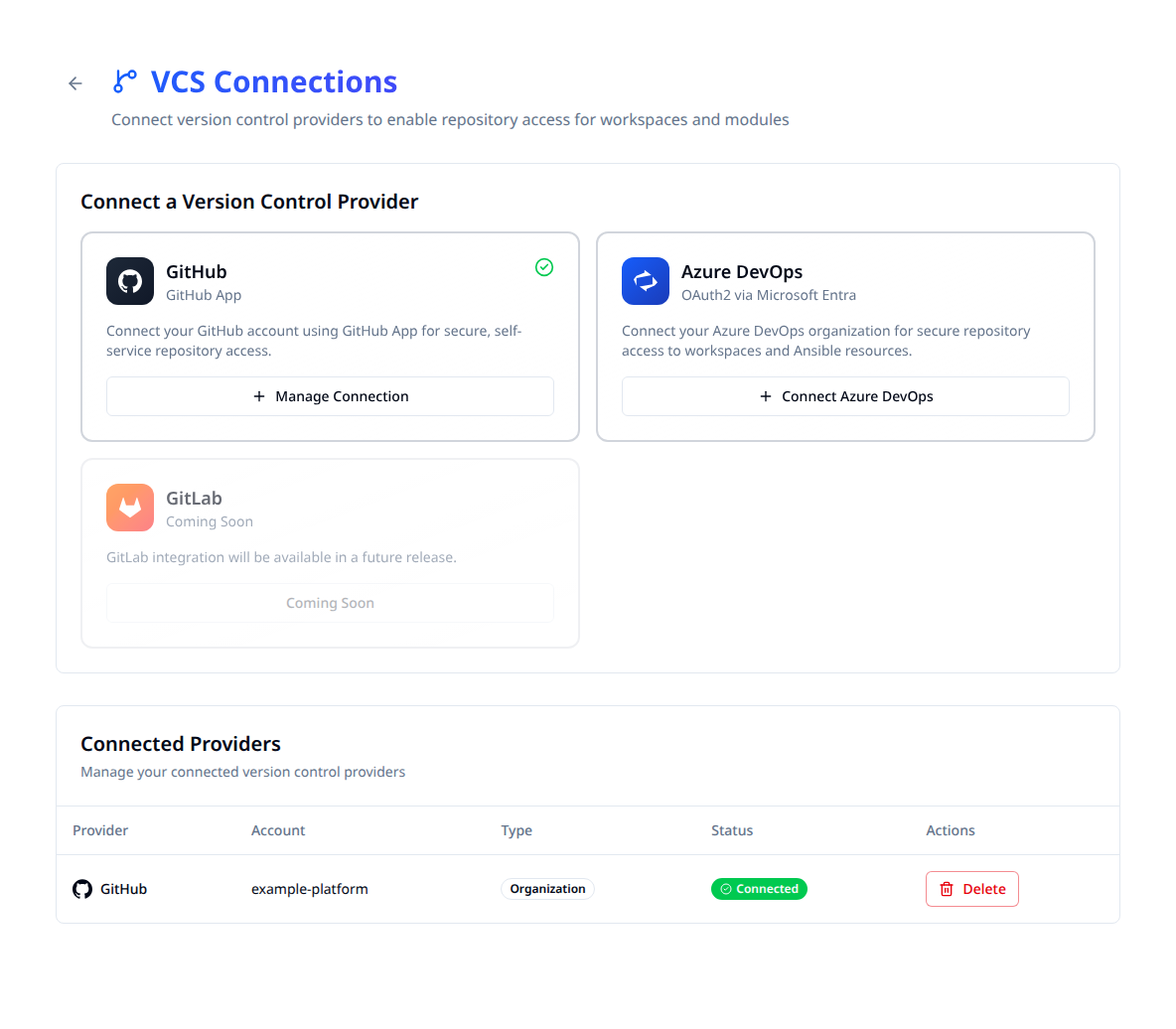
Example organization after connection. Before the first connection, choose Connect GitHub.
Register the app
-
Open GitHub App registrations, or your GitHub organization's Settings > Developer settings > GitHub Apps > New GitHub App.
-
Give it a unique name and set Homepage URL to your Stackweaver frontend.
-
Enter the Callback URL for user authorization:
https://app.example.com/vcs/github/authorized -
Leave Request user authorization (OAuth) during installation unchecked. Stackweaver needs the separate installation return through Setup URL:
https://app.example.com/vcs/github/installed -
Enable webhooks. Set Webhook URL to the public API origin plus this path:
https://app.example.com/api/v2/vcs-connections/github/webhookUse your API's own hostname if it differs from the frontend. Keep SSL verification on. Generate a webhook secret and retain it for the deployment configuration below.
-
Configure repository permissions and events as described below.
-
Choose Any account if organizations other than the app owner must install it, then create the app. GitHub calls this a public app; it does not make private repositories public.
-
Record the App ID and the app URL's slug. Generate and download a private PEM key.
-
Copy the Client ID, generate a client secret, and store its value securely. The App ID, Client ID and installation ID are different identifiers.
For local development, the callback and setup paths are the same under the local frontend origin. For example, the callback is:
http://localhost:5173/vcs/github/authorized
Permissions and events
Keep the app's access limited to the repositories it should automate.
| Repository permission | Level | Use |
|---|---|---|
| Contents | Read-only | Read configuration, playbooks, inventories and module source. |
| Metadata | Read-only | Repository metadata; GitHub includes it for apps. |
| Pull requests | Read-only | Read pull request changes for speculative plans. |
| Commit statuses | Read and write | Publish plan results as commit status checks. |
An existing registration may also grant Webhooks: write for repository-hook management and Organization members: read. Those permissions do not replace Contents or Commit statuses. Keep them when your deployment uses those operations; do not grant unrelated Actions permissions merely for this connection flow.
Subscribe to Push and Pull request events. Installation lifecycle events let
Stackweaver remove a connection when the app is uninstalled. New-installation or
repository-access-change deliveries do not connect a Stackweaver organization: the signed-in
browser return does that. workflow_job is not a requirement of this VCS connection flow.
If permissions change after installation, the installation owner must approve the update in GitHub. Recheck Commit statuses: read and write when status reporting returns 403.
Configure Docker Compose
Run these steps from the directory containing your deployment's Compose file. Put the PEM key at the host path mounted by that file; the repository deployment uses:
cp ~/Downloads/your-app.private-key.pem ./github-app-private-key.pem
The API, orchestrator and Ansible runner need to read that file through their configured read-only mount. Keep the deployment directory private and ensure the container user can read the key; the repository's containers use UID 1001.
Put the app settings in the persistent vcs.env file, not the generated .env:
GITHUB_APP_ID=123456
GITHUB_APP_NAME=your-stackweaver-app
GITHUB_APP_CLIENT_ID=replace-with-client-id
GITHUB_APP_CLIENT_SECRET='replace-with-client-secret'
GITHUB_WEBHOOK_SECRET='replace-with-webhook-secret'
Single-quoted env-file values preserve literal $ characters. If you use unquoted values,
escape each literal $ as $$. An environment: entry in Compose overrides env_file,
so do not add a blank app credential or webhook-secret override there.
The repository Compose file already loads vcs.env, sets the private-key container path
and mounts the key for those three services. For another Compose deployment, verify the
same wiring before applying. Keep the public frontend origin consistent with the
custom-domain procedure.
docker compose up -d api orchestrator ansible-runner
docker compose logs --tail=100 api
Check that the GitHub App manager initializes, without printing secrets or the complete resolved Compose configuration into a shared log.
Configure Kubernetes with Helm
Create the Secret in the release namespace. This command creates a new Secret; update an existing one through your normal secret-management process.
kubectl create secret generic stackweaver-github-app \
  --namespace stackweaver \
  --from-file=private-key=./github-app-private-key.pem \
  --from-literal=webhook-secret='replace-with-webhook-secret' \
  --from-literal=client-secret='replace-with-client-secret'
Add this to the complete values file you maintain for the release:
secrets:
  githubApp:
    secretName: stackweaver-github-app
    keys:
      privateKey: private-key
      webhookSecret: webhook-secret
      clientSecret: client-secret
api:
  githubApp:
    id: "123456"
    name: "your-stackweaver-app"
    clientId: "replace-with-client-id"
orchestrator:
  githubApp:
    id: "123456"
    name: "your-stackweaver-app"
The chart mounts the key for the API and orchestrator and injects their app settings. The API receives the webhook secret and OAuth client secret from the named Secret. An empty Secret name disables this chart wiring.
Set STACKWEAVER_CHART_VERSION to the installed version from helm list, then apply your
complete values without turning a settings change into an unintended chart upgrade:
helm upgrade stackweaver oci://ghcr.io/vhco-pro/charts/stackweaver \
  --version "${STACKWEAVER_CHART_VERSION:?Set the installed chart version}" \
  --namespace stackweaver --values my-values.yaml
kubectl logs deployment/stackweaver-api --namespace stackweaver --tail=100
Preserve PEM formatting with an external secret manager
Store or sync the key as a multiline file. For example, Vault's file input preserves it:
vault kv put secret/stackweaver-github-app \
  [email protected] \
  webhook-secret='replace-with-webhook-secret' \
  client-secret='replace-with-client-secret'
For 1Password, use a document attachment or another file-preserving workflow rather than flattening the PEM into one text line. After syncing the Kubernetes Secret, inspect only its header and line count, not the private key's body:
kubectl get secret stackweaver-github-app --namespace stackweaver \
  -o jsonpath='{.data.private-key}' | base64 -d | head -1
kubectl get secret stackweaver-github-app --namespace stackweaver \
  -o jsonpath='{.data.private-key}' | base64 -d | wc -l
A private-key header occupies its own line. The exact line count depends on key format; a single collapsed line is not a valid replacement for the PEM file.
Connect an organization and verify it
- Sign in to Stackweaver and open the intended organization's Settings > VCS Connections.
- Choose Connect GitHub. Select the GitHub account or organization and the repositories the app should access, then install it.
- Return to Stackweaver and complete GitHub's user authorization when prompted. Stay signed in as the person who started the connection and finish within 15 minutes.
- Confirm the installation appears in the intended organization. Open a workspace or playbook registration and check that its repository and branches can be selected.
- Push a small relevant change in a test repository. Check the app's webhook deliveries, the expected sync or run, and any configured pull request status check.
Installing the app directly from GitHub does not connect a Stackweaver organization. Stackweaver checks the authorized user's access to the installation before recording it for the organization that started the flow.
sequenceDiagram
    participant Admin as Organization admin
    participant SW as Stackweaver
    participant GH as GitHub
    Admin->>SW: Connect GitHub
    SW->>GH: Install app on selected repositories
    GH->>SW: Setup URL with installation ID
    SW->>GH: Authorize the signed-in user
    GH->>SW: Callback URL with authorization code
    SW->>GH: Check user's accessible installations
    SW->>SW: Connect the original organization
Connection flow legend
- The platform owner registers the app once; organization administrators connect installations.
- The Setup URL and authorization Callback URL perform different steps. Keep both configured.
- The connection belongs to the organization that initiated it, not an arbitrary webhook delivery.
- Installation tokens are short-lived. The deployment's app credentials generate them as needed.
Recover a connection problem
| Symptom | Check and next action |
|---|---|
| Redirect to localhost from a public deployment. | Correct the app's Setup URL and Callback URL, and the deployment's public frontend origin. Restart from Connect GitHub. |
| GitHub App not configured. | Read API startup logs. Check App ID, slug, readable PEM, and Helm Secret wiring. |
| User authorization not configured. | Supply the Client ID and client secret, and register the authorization callback. |
| Redirect URI not associated with the app. | Compare the callback exactly with your frontend origin plus the authorization path. |
| Authorized user cannot access the installation. | Use a GitHub account with access to that installation and restart the connection. |
| Flow expired or the wrong Stackweaver user returned. | Restart from the intended organization's Connect GitHub and complete within 15 minutes. |
| Every webhook delivery returns 401. | Compare the configured secret locally with the GitHub setting. Check env-file quoting or $ expansion and overriding Compose entries, then recreate the API. |
| Push causes no run or sync. | Check webhook URL, delivery result, repository access, tracked branch, and applicable path filters or auto-queue settings. |
| Token generation fails. | Check the App ID, private-key formatting and installation access. |
| Status checks return 403. | Approve the installation's updated Commit statuses: read and write permission; retry with an authorized installation. |
See GitHub's app registration reference and GitHub provider authentication for vendor settings and automation boundaries.