Managing Ansible playbooks
Register a repository file so you can use it in a job template. Choose a source mode to control whether jobs use a synced snapshot or fetch the branch when they start.
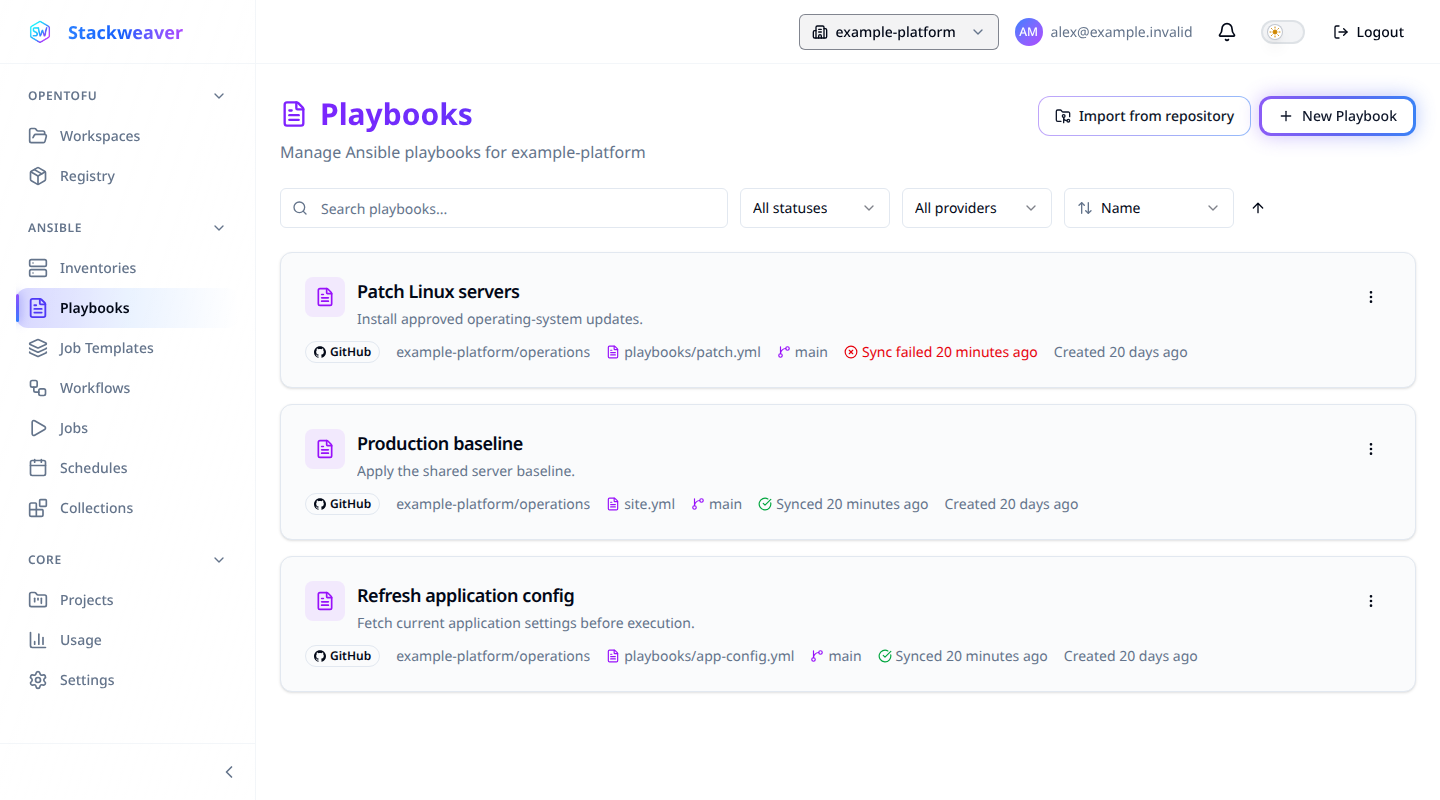
Before you start
For creation or import from the Playbooks page, you need organization-level Ansible management permission and at least one project in the organization. Use a GitHub or Azure DevOps connection in that same organization with access to the repository and branch containing your playbooks.
The Playbooks page and import wizard do not offer a project picker. Do not rely on a particular default project. If placement matters, specify the project through the provider or API examples below.
Prepare a repository file
A registration points to a playbook; it does not create its YAML. If you need a small file
to verify repository loading, commit this as site.yml on the branch you will register:
- name: Verify repository playbook loading
  hosts: localhost
  connection: local
  gather_facts: false
  tasks:
    - name: Confirm the playbook loaded
      ansible.builtin.debug:
        msg: Repository playbook loaded
This example runs on the runner and changes no managed hosts. A successful task verifies
that the file loaded; it does not test connectivity or permissions on your target hosts.
Use your own playbook for the actual work. Collection dependencies belong in repository
requirements.yml; see Galaxy collections.
| Interface | Use it for |
|---|---|
| Web interface | Register one file, discover several files for import and inspect sync results. |
| Terraform provider | Declare registrations with an explicit project, repository, file and source mode. |
| REST API | Register or bulk-import files, change source mode, request a sync and read its result. See Automate registrations. |
Choose what a job runs
| Source mode | What runs |
|---|---|
| Cached snapshot (default) | Content captured by the last successful sync. Once a usable snapshot exists, snapshot-capable runners do not need to clone the playbook repository. |
| Fresh from remote / Fresh from VCS at runtime | The selected branch's HEAD at job execution time. This requires repository access for every job. |
Fresh mode does not pin a job to the commit that triggered a webhook. Cached mode can use an older snapshot while a new sync is still in progress. Check the intended commit before launching work that depends on a particular revision.
Older self-hosted agents still clone in cached mode. Before relying on execution while VCS is unavailable, verify snapshot support on your runner.
Galaxy dependencies and playbook tasks can still need network access in either mode.
Cached mode on platform and self-hosted runners
If a cached playbook has no snapshot, the platform runner fetches and captures one before execution. A current self-hosted agent clones for that job while a snapshot sync is queued for later jobs. Older agents without snapshot support clone even when cached mode is selected.
Register one playbook
- Open Playbooks and select New Playbook.
- Choose the VCS Connection, repository and branch.
- Select the Playbook Path and check the generated Name, or enter your own name.
- Under Source, choose Cached snapshot (recommended) or Fresh from remote.
- Select Create Playbook and check that it appears on the Playbooks page.
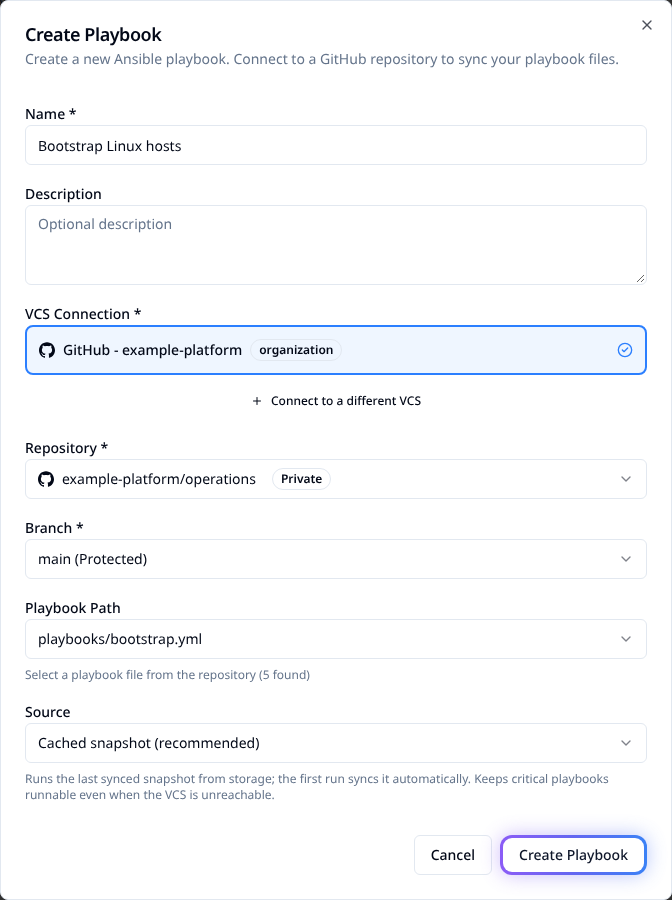
To prepare a cached revision before launching, open the playbook and select Sync from VCS. Wait for a successful sync and check the recorded commit. For an end-to-end launch, continue with your first Ansible job.
Import several playbooks
- On Playbooks, select Import from repository.
- Choose the connection, repository and branch.
- Use Directory Filter if needed, then select files under Playbook Files. Already registered files are disabled and identify their existing registration.
- Choose Source Mode and import up to 200 files at a time.
- Read the per-file results. Some files can be created while others fail; correct the reported failures and retry those files.
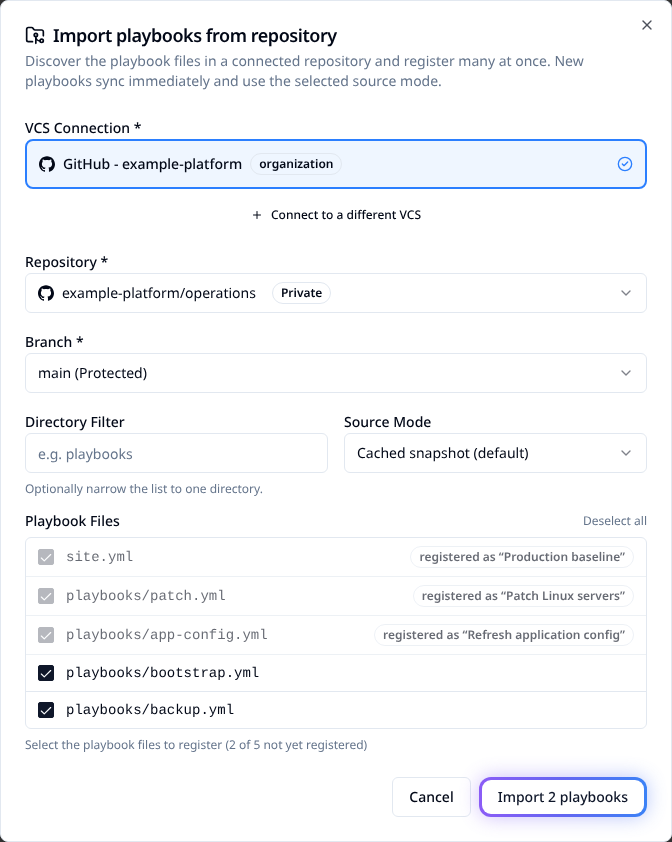
New registrations queue a sync, so an import result does not prove content is already synced. Check the eventual sync status before relying on a cached revision. Repeating an import skips registrations already present for the same project, connection, repository, branch and path. Files with colliding names receive disambiguated names; check the result.
Pick a file while creating a template
In a job template's playbook field, choose Registered for an existing playbook or From repository to select a connection, repository, branch and Playbook File.
Saving the template reuses an existing registration or creates one if needed. New registrations through this path default to cached mode. Canceling the form does not register the selected file.
Find a playbook or recover a failed sync
Search matches the name, description and file path. Filter by provider or sync status; sort by name, creation time, last sync, provider or sync status. Sorting applies to the whole list, not just the current page. Use Clear filters to reset the view.
| Sync state | What to do |
|---|---|
| Syncing | Wait for the result before expecting a new cached revision. |
| Synced | Check the commit and sync time when a specific revision matters. |
| Sync failed | Read the error from the status indicator or detail page. Check repository access, branch and path, then use Retry sync or Sync from VCS. |
An older cached snapshot can remain usable after a failed sync. A green result from an import or an existing registration alone does not establish which revision a job ran. For cached execution, the job's Playbook source event identifies the snapshot commit and capture time. To verify a self-hosted runner before relying on cached execution, sync the playbook and run a non-changing test playbook in cached mode. Check for that source event. If it is absent, treat snapshot support as unverified and ask the runner operator to check the installed image.
Fresh jobs do not emit that cached-snapshot banner. Checking branch HEAD before launch does not establish which revision was fetched later. When a recorded revision is required, use cached mode, wait for a successful sync and verify the job's snapshot source event.
If the file is missing from discovery
Discovery lists YAML candidates by path conventions; it does not validate that every candidate is an executable playbook. Check that the file is in the selected repository and branch, then consider the exclusions below.
Excluded paths and repository listing limits
Role internals, variable and inventory directories, tests, hidden directories and dependency
files are excluded. Examples include roles/, tasks/, group_vars/, inventories/,
.github/, requirements.yml and cloud inventory plugin files. Both .yml and .yaml
files can be candidates outside excluded locations.
A very large GitHub repository can return a truncated file listing. If the form finds no candidates, it offers a typed path. When it lists other candidates but omits your file, use the registration operation in the API explorer, or move the playbook to a discoverable path. Do not assume every form accepts arbitrary paths.
Delete a registration
Choose Delete from the list or playbook detail page and review the confirmation.
Two things block the delete, and the dependency message names how many of each there are:
- Job templates that use the playbook. Point those templates at another playbook or delete them, then delete the registration again.
- Jobs using the playbook that have not finished, pending or running. Wait for them to finish, or cancel them from the job page, then delete the registration again.
Jobs that ran the playbook stay, with their output, host results and events. The job page shows the playbook by the name it had when the job ran, marked Deleted, without a link. Such a job cannot be relaunched; launch a new job from another playbook or template instead. Schedules that synced the playbook stay without a playbook. The playbook's cached snapshot and stored content are removed from object storage.
Force Delete Everything cancels the jobs using the playbook that have not finished, and also removes the dependent job templates with their jobs and events, schedules that target the playbook, and workflow steps that run those templates. Jobs that ran the playbook without one of those templates stay. This cannot be undone. It requires playbook write access and organization-level Ansible management permission.
Automate registrations
Declare a playbook with Terraform
Configure the Stackweaver provider with your host, token and
organization. Add this resource to playbooks.tf, supplying existing project and
VCS connection IDs from that organization:
variable "project_id" { type = string }
variable "vcs_connection_id" { type = string }

resource "stackweaver_ansible_playbook" "baseline" {
  project_id        = var.project_id
  name              = "Production baseline"
  vcs_connection_id = var.vcs_connection_id
  vcs_repository    = "example-platform/operations"
  vcs_branch        = "main"
  playbook_path     = "site.yml"
  source_mode       = "cached"
}
Replace the repository, branch and path with your own, review the plan, then apply it.
The resource registers a file; it does not launch a job. Check the registration's sync
status and cached commit before using it. Changing source_mode to fresh updates the
registration. If it already exists outside Terraform, set PLAYBOOK_ID to the existing
registration's ID and import it before managing it with this resource.
terraform import stackweaver_ansible_playbook.baseline "$PLAYBOOK_ID"
Register and sync through the API
Configure the environment as in Using the API. Save
this as playbook.json, replacing the project and connection IDs and repository details:
{
  "data": {
    "type": "ansible-playbooks",
    "attributes": {
      "name": "Production baseline",
      "vcs-repository": "example-platform/operations",
      "vcs-branch": "main",
      "playbook-path": "site.yml",
      "source-mode": "cached"
    },
    "relationships": {
      "project": {"data": {"type": "projects", "id": "<project-id>"}},
      "vcs-connection": {"data": {"type": "vcs-connections", "id": "<connection-id>"}}
    }
  }
}
curl --fail --silent --show-error --request POST \
  --header "Authorization: Bearer $STACKWEAVER_TOKEN" \
  --header "Content-Type: application/vnd.api+json" \
  --data @playbook.json \
  "$STACKWEAVER_API_URL/api/v2/organizations/$STACKWEAVER_ORGANIZATION/ansible/playbooks"
Creation returns 201 Created with the playbook ID in data.id; its initial sync can
still be pending. Set PLAYBOOK_ID to that ID. Request another sync when needed:
curl --fail --silent --show-error --request POST \
  --header "Authorization: Bearer $STACKWEAVER_TOKEN" \
  "$STACKWEAVER_API_URL/api/v2/ansible/playbooks/$PLAYBOOK_ID/actions/sync"
202 Accepted means the sync was queued. Read GET /api/v2/ansible/playbooks/{id} until
data.attributes.last-sync-status reports its result, then check cached-commit for cached
execution. To update the source mode, send PATCH /api/v2/ansible/playbooks/{id} with
this body:
{
  "data": {
    "type": "ansible-playbooks",
    "attributes": {"source-mode": "fresh"}
  }
}
The current playbook edit dialog has no source-mode selector.
Import several files through the API
Save this as playbooks-import.json, replacing the identifiers and repository details.
Include only paths that exist on the selected branch; this example registers two files.
{
  "data": {
    "type": "ansible-playbooks",
    "attributes": {
      "project-id": "<project-id>",
      "vcs-connection-id": "<connection-id>",
      "repository": "example-platform/operations",
      "branch": "main",
      "source-mode": "cached",
      "playbooks": [
        {"path": "site.yml", "name": "Production baseline"},
        {"path": "playbooks/bootstrap.yml", "name": "Bootstrap hosts"}
      ]
    }
  }
}
curl --fail --silent --show-error --request POST \
  --header "Authorization: Bearer $STACKWEAVER_TOKEN" \
  --header "Content-Type: application/vnd.api+json" \
  --data @playbooks-import.json \
  "$STACKWEAVER_API_URL/api/v2/organizations/$STACKWEAVER_ORGANIZATION/ansible/playbooks/actions/bulk-import"
Expect HTTP 200, a data array of registrations, and meta.created, meta.skipped,
meta.failed and meta.failed-rows. Inspect failures even when the HTTP request succeeds,
then retry only the affected files. New registrations still need a successful sync before
their cached content is ready. The limit is 200 files per request. Use the
API explorer for complete operation schemas.