Configure run timeouts
Set a workspace's Run Timeout to limit long-running OpenTofu applies. The default is 2 hours. This setting does not give the entire run one shared deadline: plans, initialization, external checks and approval waits behave differently.
A timeout does not undo infrastructure changes. A failed run status does not prove the command has stopped: self-hosted agent commands and platform provider-error retries can continue running. Confirm execution has stopped before starting another run against the same infrastructure.
Choose a configuration path
You need permission to edit the workspace. Choose a positive value based on successful apply durations, with room for slow provider operations. Set it before launching work. Increasing a limit does not resolve an operation that is waiting indefinitely.
| Interface | How to set it |
|---|---|
| Workspace UI | Enter hours in Run Timeout. The dialog also shows the equivalent seconds. |
| Workspace API | Send the positive run-timeout attribute in seconds. For example, 3 hours is 10800. |
| Terraform/OpenTofu provider | The current workspace resource does not expose this Stackweaver extension. Use the UI or API for this setting; other workspace arguments are covered in the provider guide. |
Set it in the UI
- Open the workspace's Overview tab and find Workspace Settings.
- Beside Run Timeout, select Edit.
- Enter Timeout (hours). Check the equivalent seconds, then select Save.
- Confirm that Run Timeout shows the intended value. Reload the page and check again.
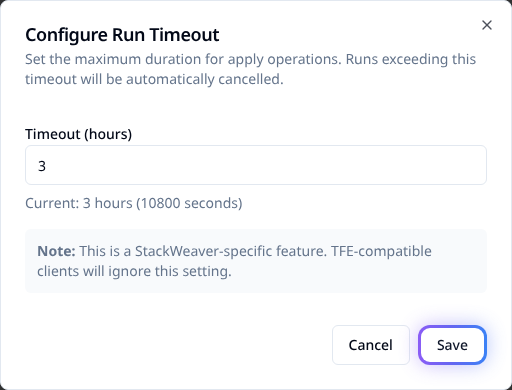
Example: 3 hours equals 10800 seconds. Choose a limit appropriate for your workspace.
Set it through the API
This attribute is a Stackweaver extension. A compatible client that does not send it cannot
change it. With your API origin and token configured as in
Using the API, set WORKSPACE_ID to the workspace's
ID. Keep the origin free of /api/v2. This request sets a three-hour timeout:
curl --fail --silent --show-error --request PATCH \
  --header "Authorization: Bearer $STACKWEAVER_TOKEN" \
  --header "Content-Type: application/vnd.api+json" \
  --data '{"data":{"type":"workspaces","attributes":{"run-timeout":10800}}}' \
  "$STACKWEAVER_API_URL/api/v2/workspaces/$WORKSPACE_ID"
Check data.attributes.run-timeout in the response, then read the workspace again:
curl --fail --silent --show-error \
  --header "Authorization: Bearer $STACKWEAVER_TOKEN" \
  "$STACKWEAVER_API_URL/api/v2/workspaces/$WORKSPACE_ID"
The stored data.attributes.run-timeout should be 10800. Zero leaves the saved timeout
unchanged; it does not disable execution limits. See the
API explorer for workspace operation schemas.
Which limit applies?
| Work or wait | Limit |
|---|---|
| Platform runner: apply | The workspace timeout, normally 2 hours. |
| Platform runner: first plan attempt | Half the workspace timeout, with a minimum of 30 minutes. A 2-hour workspace value gives a 1-hour first-plan deadline. |
| Platform runner: first initialization | 15 minutes, independent of the workspace value. |
| Platform runner: automatic provider-error recovery | Retried initialization and planning do not receive the initial attempts' local deadlines. The periodic workspace timeout check still applies. |
| Self-hosted agent: OpenTofu command | This setting supplies no local command deadline. The platform can mark overdue execution as failed while the command continues. |
| External run-task stage | Normally 10 minutes without progress or 60 minutes total. Operators can configure these limits separately. |
| Apply confirmation or override of a failed mandatory check | Waits for a person's decision without an automatic deadline. |
The periodic timeout check
The platform checks overdue executing runs about once a minute. It compares the workspace limit with elapsed time since apply started, or otherwise since the run started. This check marks the run as failed; it does not stop its process.
For example, a workspace value below 30 minutes can produce a plan error before the first plan command reaches its 30-minute local deadline. A failed status and an error message mentioning cancellation are not proof that every process has exited.
After a timeout
- Find the affected phase. Read the run error and output to identify where progress stopped.
- Confirm execution has stopped. Ask the runner operator to check for a remaining OpenTofu process, especially on agents or after provider-error retries. Stop any remaining execution before retrying against the same infrastructure.
- Check state and infrastructure. Open the workspace's States tab for the latest recorded version. Inspect the actual infrastructure too: resources created before an interruption can still exist.
- Resolve the cause, then review a new plan. Adjust the timeout if the duration was legitimate. Check the new plan before applying again; increasing the limit is not a rollback.
Use run cancellation to request a manual stop of an active run. For external-check failures and override rules, see Run Tasks.